Using the Navigation Bar on Apps
Learn how to use the bottom navigation bar in the Stocktwits mobile app to switch markets, track your Watchlist, and explore ideas.
Articles
On this page
Using the Navigation Bar on Apps
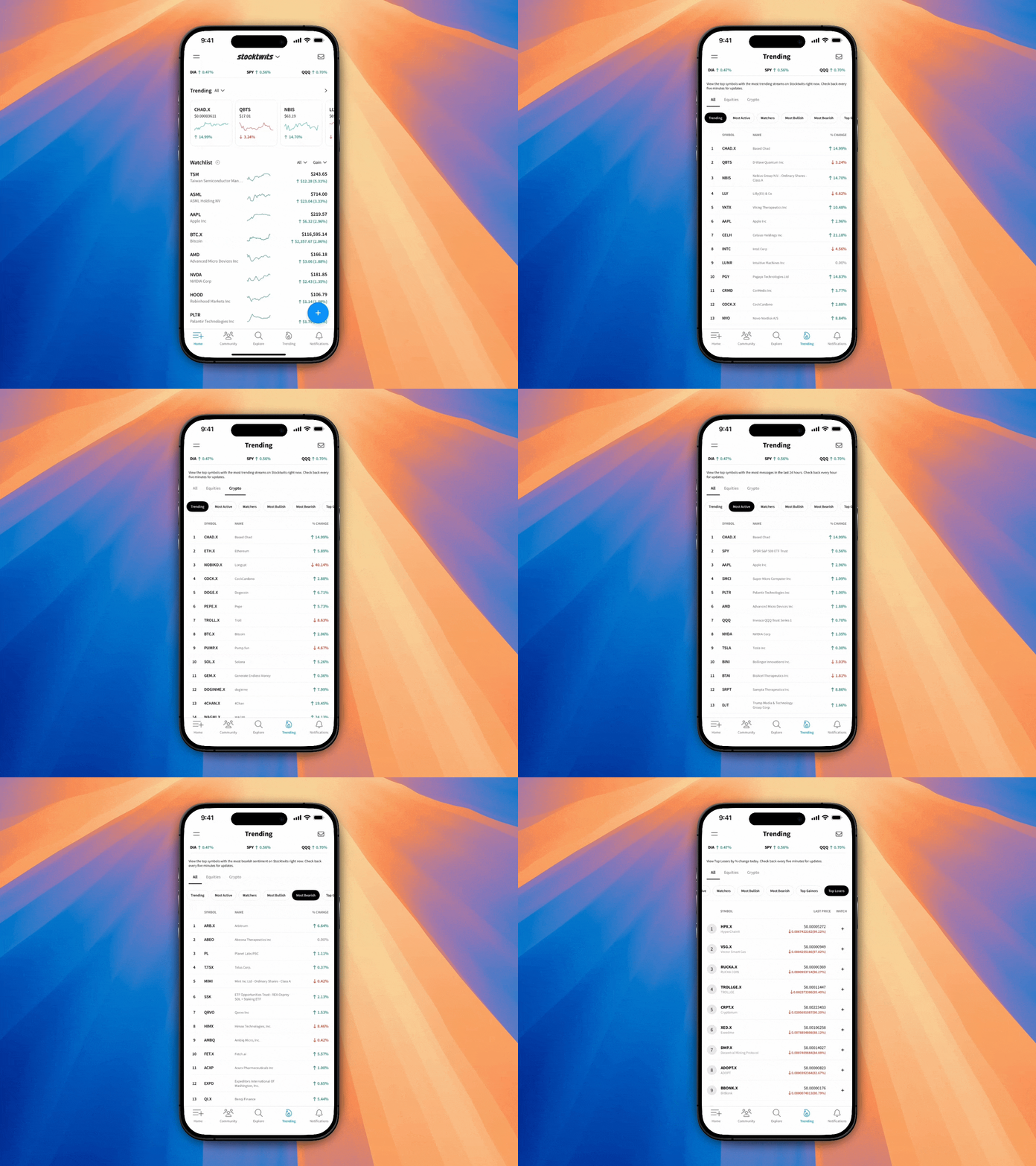
The Stocktwits mobile app features a bottom navigation bar that gives you fast access to the most important parts of the platform. Whether you’re switching between stocks and crypto, tracking your Watchlist, or exploring new ideas, everything is just a tap away.
Navigation Bar Overview
Here’s what each tab in the bottom navigation does:
1. Stocktwits Logo
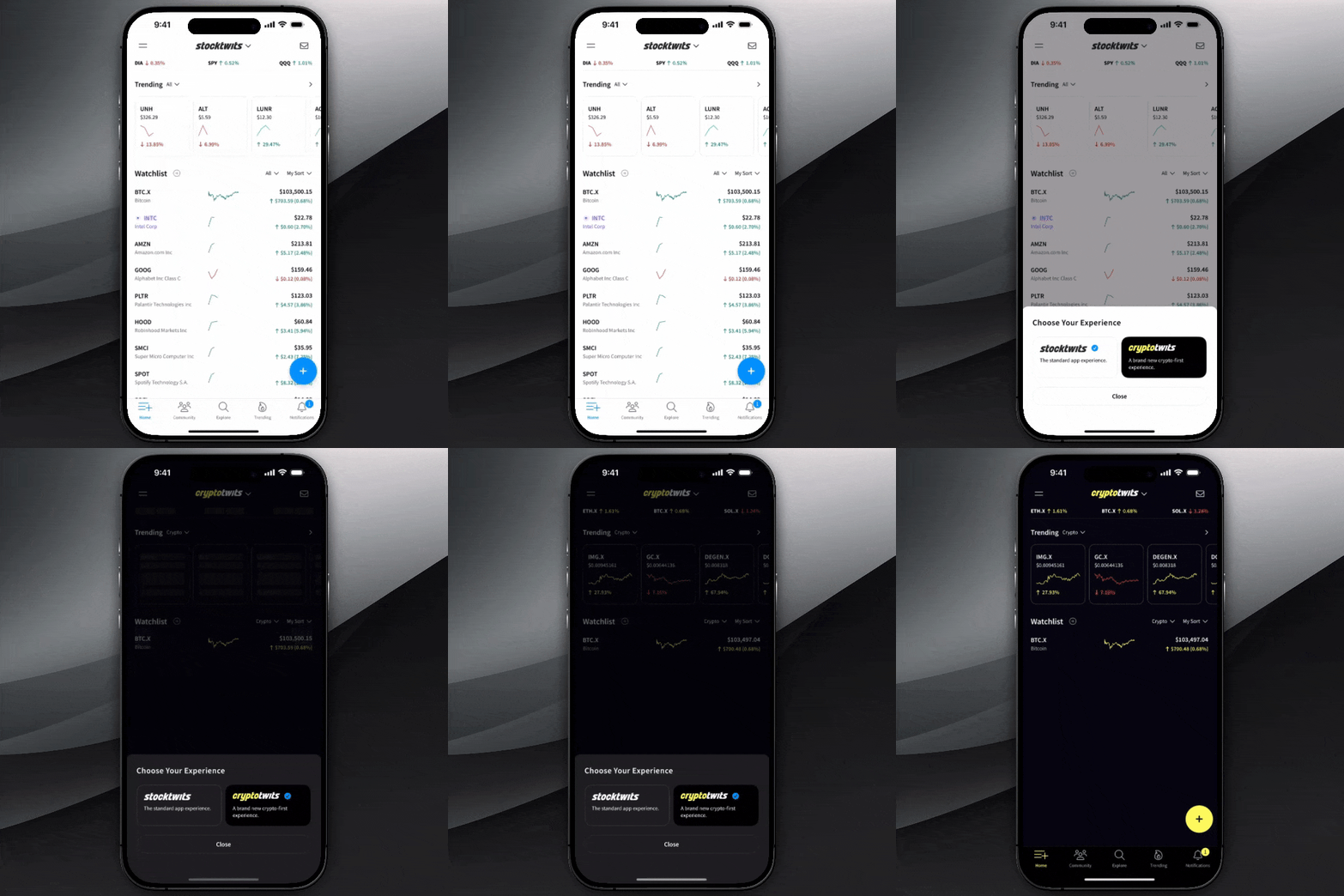
Tapping the logo, you’ll find a dropdown that lets you toggle between:
Stocktwits (Stocks)
Cryptotwits (Crypto)
Switch modes to focus only on the market you’re trading without leaving the app.
2. Home
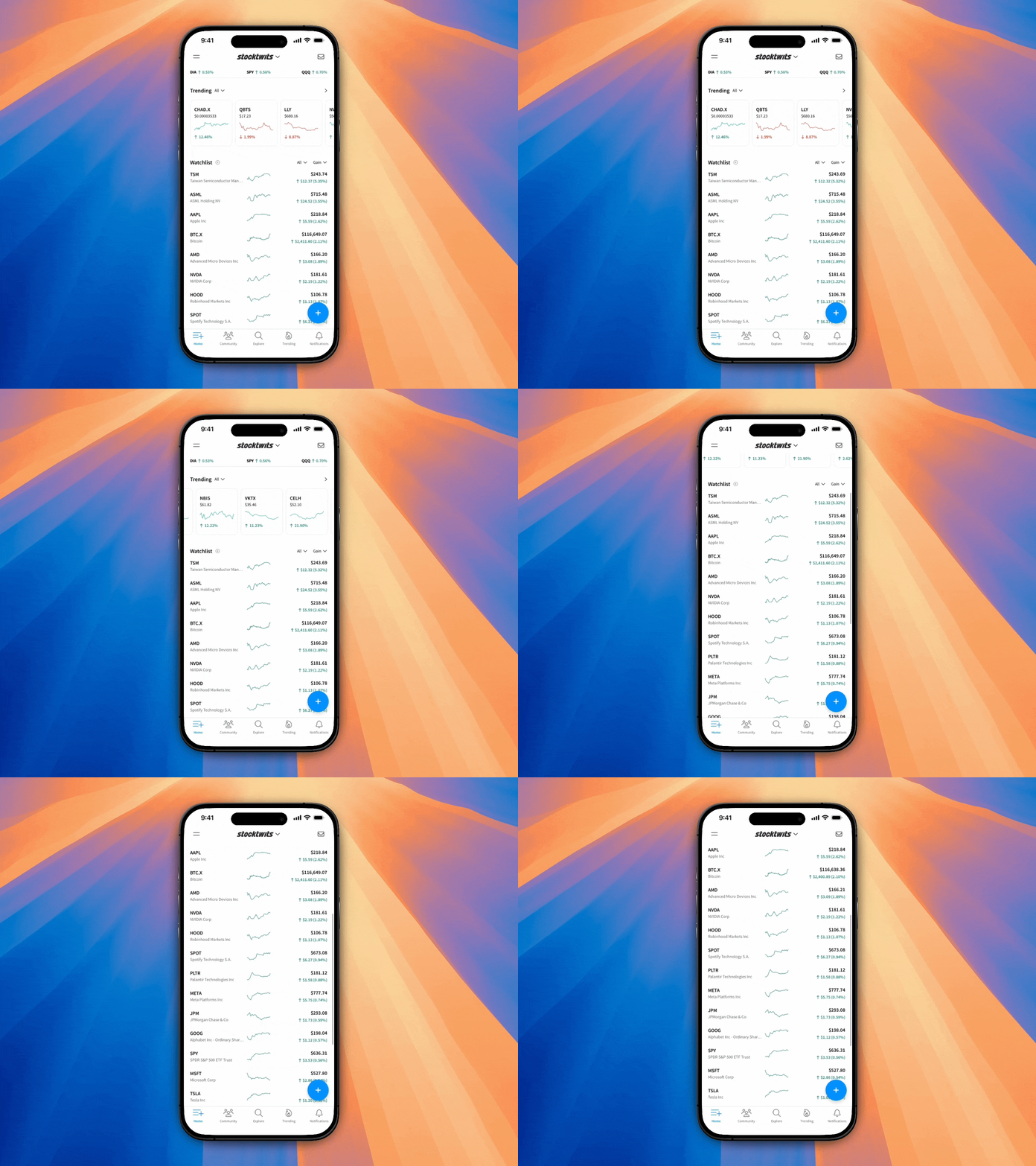
The Home tab includes:
Your personalized Watchlist feed
A snapshot of trending tickers
This is your default landing screen in the app.
3. Community
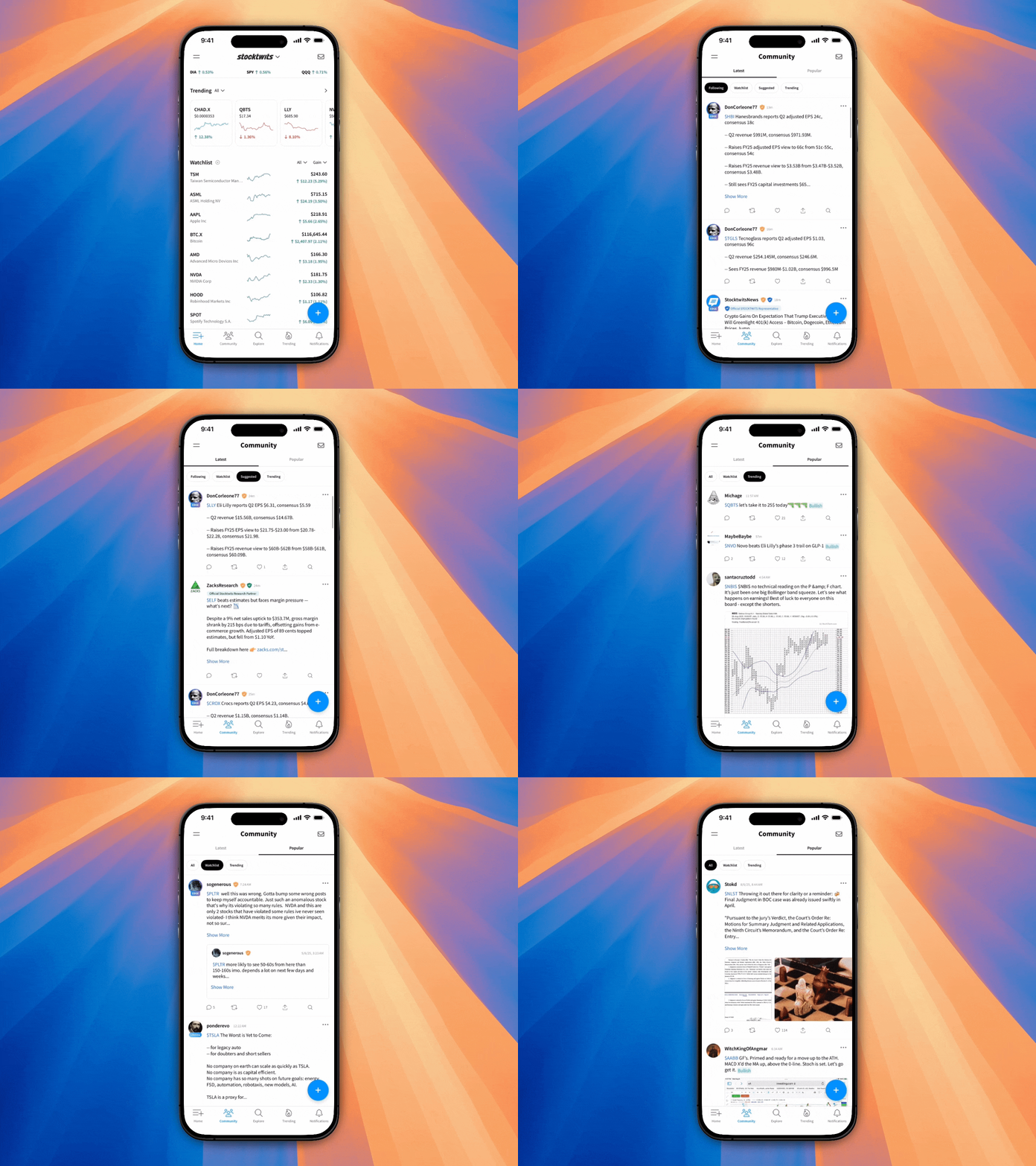
The Community tab includes: Latest & Popular Streams.
Latest Stream: Real-Time Content in each of the following feeds -
Following Feed – posts from users you follow
Watchlist Feed – posts tagged with tickers on your Watchlist
Trending Feed – posts tied to tickers with rising message volume
Suggested Feed – curated content from top creators and market voices
Popular Stream: Content that is popular among community members.
Watchlist Feed – most popular posts tagged with tickers on your Watchlist
Trending Feed - most popular posts of the currently trending stocks and crypto
4. Explore
Use the Explore tab to:
Search for tickers, users, or topics
Access trending tickers
Navigate quickly to any symbol page
View video livestreams
View top discussions
Join live earnings calls
Read the latest news
Explore accounts to follow
5. Trending
Tap this to go straight to the full Trending view, where you can explore:
Trending
Most Active
Top Bullish and Bearish Stocks and Crypto
Most New Watchers
Top Gainers & Top Losers
You can filter these lists by Equities, Crypto, or both.
6. Notifications
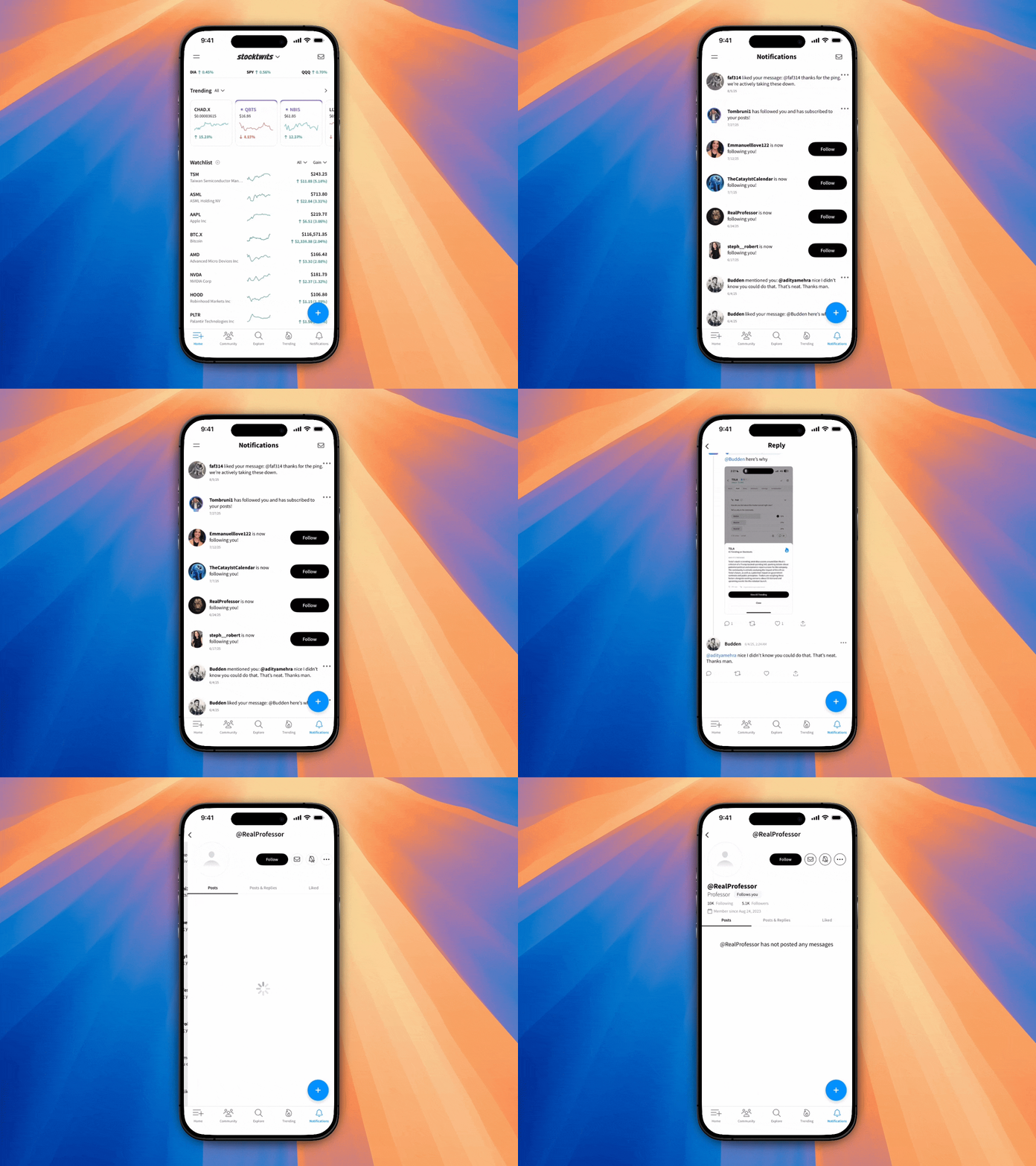
The bell icon opens your notifications panel:
See when someone follows you, likes your post, or replies
View alerts for Watchlist movements and creator updates
Manage notification preferences in your device settings