
How to Use Filters on Stocktwits
Filters help you focus on what matters by customizing how tickers appear across your Trending Bar, Markets tab, and Watchlist. What You Can Filter You can apply
Articles
On this page
Filters help you focus on what matters by customizing how tickers appear across your Trending Bar, Markets tab, and Watchlist.
What You Can Filter
You can apply filters to show:
Equities only
Crypto only
Both equities and crypto
This allows you to streamline your view and reduce noise—especially when switching between stock and crypto discussions.
Where Filters Apply
Filters can be used on:
Trending Bar: Limit the top-of-feed ticker tiles to just stocks or crypto
Markets Tab: Adjust the lists shown (e.g., Most Active, Top Bullish)
Your Watchlist: Focus on only the asset types you’re currently trading
Tip: You can switch filters at any time without leaving the page—great for jumping between market types during active sessions.
Watchlist Filters: Desktop
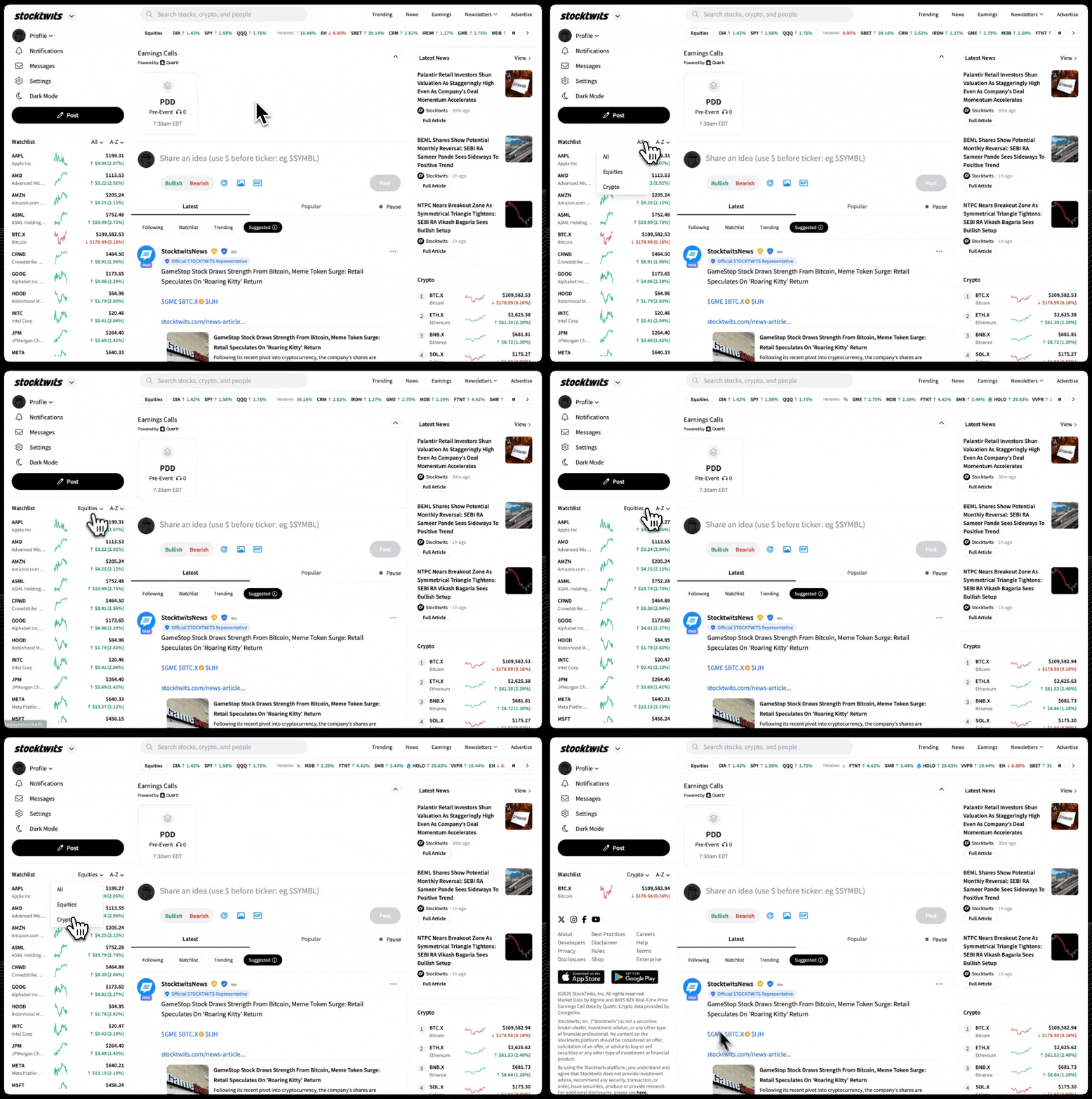
Watchlist Filters: Apps

Trending Filters: Desktop
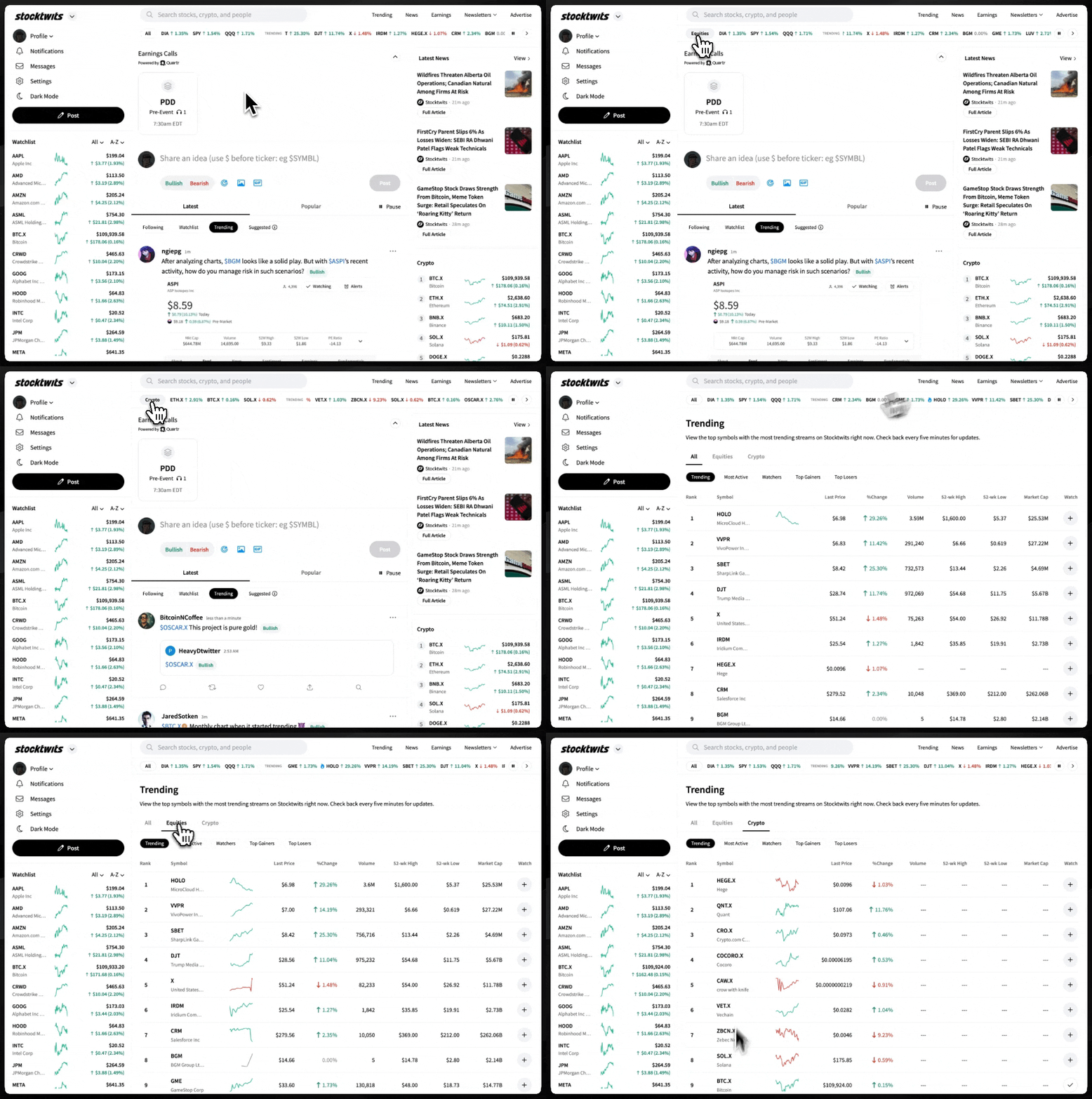
Trending Filters: Apps